

Is the Best Computer Monitor Actually a TV? What Most Buyers Get Wrong.
Sometimes the best computer monitor for your setup is a TV. A modern 4K television can deliver a large, high-contrast image for gaming, movies, and flexible desk use. It can also be a poor office display if you sit too close, need crisp small text, or expect a monitor-style stand and connectivity.
The useful question is not whether TVs or monitors are universally better. It is whether the display matches your distance, computer, tasks, and desk. A 42-inch OLED may be excellent for a controller-first gaming setup. A 27-inch monitor may be easier for spreadsheets and close reading. A laptop user may prefer a display with USB-C power delivery and a height-adjustable stand even when a TV offers a larger picture for less money.
Key Takeaways
- A TV can be an excellent computer display when you want a large image, strong contrast, built-in speakers, and a living-room or gaming use case.
- A dedicated monitor is usually easier for close desk work because of its size range, text tuning, adjustable stand, and computer-focused inputs.
- OLED TVs can look impressive on a desktop, but brightness, static interface elements, viewing distance, and long-term image retention deserve attention.
- Check the exact model's resolution, refresh rate, chroma handling, input lag, ports, sleep behavior, and return policy before buying.
- A monitor riser helps either choice fit the desk by creating a stable second level and freeing space beneath the screen.
Why Are People Asking If a TV Is the Best Computer Monitor?
The boundary between TVs and monitors has become less obvious. TVs now offer 4K resolution, fast refresh rates, gaming modes, and low-latency HDMI inputs. Large OLED panels can produce deep blacks and strong contrast that many office monitors do not match at the same price.
At the same time, monitors have adopted features once associated with televisions, including HDR, built-in speakers, remote controls, smart features, and very large screen sizes. That overlap explains why buyers in the linked Reddit discussions compare a monitor that doubles as a TV with a TV that doubles as a computer display.
The catch is that the two products still assume different primary environments. A TV is designed to be viewed from farther away and used for video content. A monitor is usually designed for close interaction with small text, a mouse, a keyboard, and a computer's sleep and wake cycle.
Monitor vs TV: What Is the Real Difference?
| Factor | TV | Dedicated computer monitor |
|---|---|---|
| Typical strengths | Large image, strong contrast, built-in speakers, remote control, and easy video streaming. | Desk-friendly sizes, adjustable stands, computer ports, text-focused modes, and close viewing ergonomics. |
| Desk distance | Often needs more depth when used at 42 inches or larger. | Usually easier to place at a comfortable close-work distance. |
| Text and desktop UI | Can be sharp at 4K when chroma and scaling are configured correctly, but processing can affect the result. | Usually tuned for small text, desktop scaling, and direct computer input. |
| Gaming | Large OLED or gaming TVs can offer high contrast, fast response, and console-friendly HDMI features. | Gaming monitors offer more size choices, PC refresh-rate options, and display ergonomics. |
| Connectivity | HDMI is common, but USB-C, DisplayPort, KVM, and USB hub features vary widely. | Computer-focused ports and ergonomic mounting options are more common, but not guaranteed. |
| Long-term desktop use | Check static-content guidance, brightness behavior, warranty, and pixel policy carefully. | Still check panel warranty and pixel policy, but the use case is usually closer to daily desktop work. |
When a TV Really Can Be the Better Computer Display
Choose a TV for a large, shared entertainment setup
A TV makes sense when one screen needs to serve a computer, a game console, and streaming services. A large panel can work across a room or at the back of a deep desk. Built-in speakers and a remote may also simplify a setup that changes between focused work and relaxed viewing.
Choose a TV for contrast and cinematic gaming
OLED televisions are often attractive to gamers who value deep blacks and a large image. The OLED Gaming discussion linked in the brief illustrates why some users describe a 48-inch TV as an impressive monitor: the same panel can deliver a cinema-like game image and a wide PC desktop.
The tradeoff is physical scale. A 48-inch screen can dominate a normal desk. You may need more viewing distance, a lower brightness level, careful window placement, and a desk that can support the screen without forcing the keyboard too close to the front edge.
Choose a TV when the price-to-size ratio matters most
TV promotions can make a large 4K panel look more affordable than a similarly sized professional monitor. Compare the complete setup cost, though. You may need a stronger stand, a suitable wall or desk mount, an adapter, external speakers, or a riser to put the screen at a workable height.

When a Dedicated Monitor Is the Better Choice
Choose a monitor for close reading and office work
A dedicated monitor is usually easier to position for documents, code, spreadsheets, and browser tabs. Common 24-inch, 27-inch, and 32-inch sizes give you more control over viewing distance. A monitor stand with height adjustment or VESA support can also make it easier to place the top third of the screen where you want it.
Choose a monitor for laptop connectivity
The Laptop PC Help discussion linked in the brief centers on a practical question: can a TV replace a computer monitor when the source is a laptop? The answer is often yes through HDMI, but the experience depends on the laptop's output, the TV's input mode, scaling, sleep behavior, and cable setup.
A monitor with USB-C power delivery can reduce cable clutter and let one cable carry video, charging, and sometimes USB data. That feature is not universal, so check the exact monitor model and the laptop's USB-C capabilities before treating it as a buying requirement.
Choose a monitor for a clean desk workflow
Monitors are more likely to provide DisplayPort, USB hubs, KVM features, pivot adjustment, and compact bases. These features can matter more than panel size when you switch between a desktop and a laptop or keep a keyboard, notebook, and accessories on a limited desk.
What Buyers Get Wrong About Using a TV as a Monitor
1. They compare diagonal size without measuring viewing distance
A 55-inch TV is not simply a larger version of a 27-inch monitor. The screen fills more of your field of view and needs more distance. Measure from your seated eye position to the screen, then check whether the desk, chair, and wall leave enough room for that distance.
2. They assume 4K automatically means sharp desktop text
Resolution is only part of the result. The computer must send the correct signal, the TV must use a suitable input mode, and chroma subsampling should not reduce the clarity of colored text. Disable unnecessary overscan and check the TV's PC or game mode. If text still looks soft, the problem may be processing or scaling rather than pixel count.
3. They ignore static-content and OLED use patterns
OLED can look excellent, but a desktop contains static taskbars, browser controls, and application panels. Use the manufacturer's guidance for pixel refresh, screen-saving behavior, brightness, and warranty coverage. No panel technology removes the need to manage a static image pattern.
4. They expect a TV to behave like a monitor after the computer sleeps
Some TVs take longer to wake, change inputs, or respond to a computer's sleep signal. That may be acceptable for a console or media center and frustrating in a workday setup. Test the exact model's behavior if your workflow includes frequent sleep and wake cycles.
5. They forget the stand and cable problem
A TV's included feet may place the panel too low or too far apart for a desk. A monitor's stand may consume less depth but still leave the screen below your preferred height. Account for the panel, stand, power cable, signal cable, keyboard, and speakers before deciding which display fits.
How to Test a TV Before Calling It Your Computer Monitor
- Confirm the signal. Check that your computer can output the TV's preferred resolution and refresh rate through the available HDMI or USB-C connection.
- Set the input mode. Look for PC mode, game mode, overscan controls, and options that preserve full chroma where the model supports them.
- Read real text. Open a document, spreadsheet, browser page, and code editor. Check small text at the scale you would use all day.
- Measure the chair position. Sit normally, then check the distance and the amount of head movement required to scan the screen.
- Test sleep and wake. Let the computer sleep, wake it, switch inputs, and reconnect the cable. Note any delay that would disrupt your routine.
- Review the return and warranty terms. Check pixel coverage, OLED image-retention language, input limitations, and the seller's return window.
How a Monitor Riser Makes Either Choice Easier to Live With
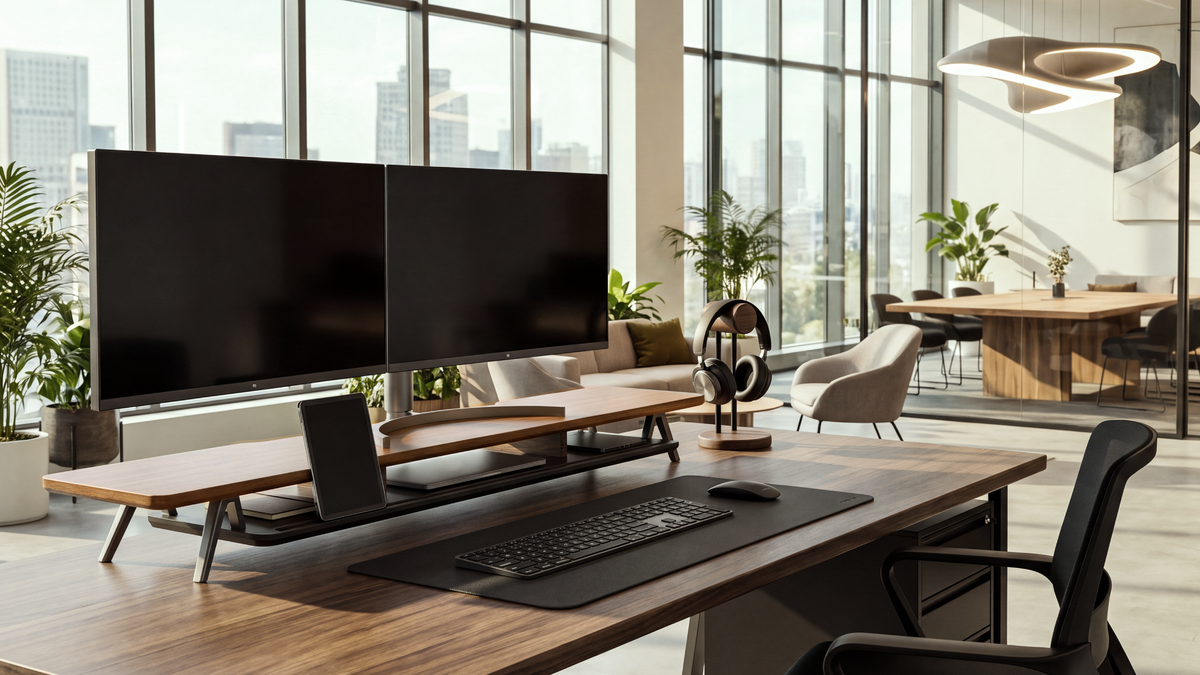
The display decision does not end with the panel. A large TV or monitor can leave the keyboard, laptop, and accessories with no clear place to go. A monitor riser creates a second level, raises the display, and opens useful space beneath it. The riser does not change the TV's processing or a monitor's panel behavior, but it can make the overall desk layout more workable.
Rodin A311 for a laptop and external display
The FENGE Rodin A311 is suited to a desk where a laptop and one external display share the same work zone. Its integrated layout combines a laptop stand, an external-monitor platform, a headphone stand, and a phone stand. This is useful when you want to test a TV or monitor with a laptop while keeping the other devices visible and organized.
Rodin A222 for a screen-centered desk setup
The FENGE Rodin A222 is an option for a more screen-centered setup. Use the product page's current measurements and configuration details to confirm that the platform, display base, keyboard, and cable path fit your desk. This planning step matters even more when the screen is a large TV.

Before ordering a riser, measure the display base or VESA position, platform depth, screen height, keyboard clearance, and rear cable bend. If you use a wall-mounted TV or a VESA arm, confirm that the riser still adds useful storage or elevation rather than creating an unnecessary second support.
Choose the Display Around the Way You Use Your Desk
A TV can be the right computer display when its size and picture suit your viewing distance. A monitor can be the better tool when daily text work and laptop connectivity matter more. Once you choose the panel, use a monitor riser to make the screen, keyboard, laptop, and accessories work together.
Frequently Asked Questions
Can I use any TV as a computer monitor?
Most modern TVs can accept a computer signal, but the result varies by resolution, refresh rate, input mode, scaling, text processing, and sleep behavior. Check the exact model rather than assuming every TV will behave the same way.
Is a TV cheaper than a computer monitor?
A TV can offer more screen area for the price, especially during promotions. Compare the complete setup, including a suitable stand, cable, speakers, power delivery, warranty, and the cost of returning a panel that does not fit your desk.
Is an OLED TV good for desktop use?
It can provide excellent contrast and motion for gaming, but desktop users should consider static interface elements, brightness, pixel-care features, viewing distance, and the manufacturer's warranty terms.
Do TVs have more input lag than monitors?
Not always. Game modes can reduce processing delay, but the result depends on the exact TV, signal, and settings. Look for independent measurements or test the model during the return period.
Can a monitor riser support a TV?
Only if the riser's platform and load specifications match the TV's base and weight. Check the current product specifications, keep the center of gravity stable, and leave room for cables.
Related Articles
Should I buy a 27-inch or a 32-inch monitor for everyday office work?
How to Choose a Monitor Stand for Dual Monitors or a 32-Inch Monitor
Share:
Should I buy a 27-inch or a 32-inch monitor for everyday office work?