

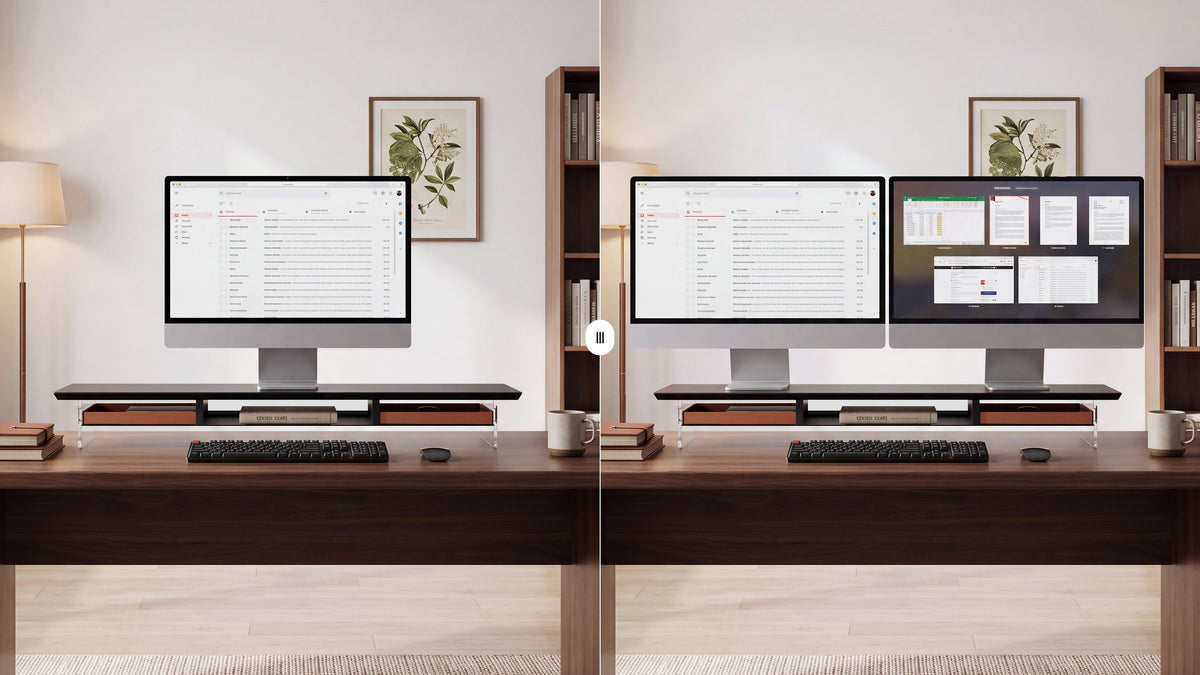
Single vs Dual Monitor Setup: Which One Fits Your Work?
The best monitor arrangement is the one that matches the way you work. A single monitor keeps the desk simple and can be the better choice for focused work, small spaces, or a laptop-first routine. A dual monitor setup gives you more room for reference material, communication, and side-by-side tasks, but it also needs more desk space and more attention to alignment.
Choose based on your daily workflow rather than a general productivity promise. Start with the number of windows you need at the same time, then check desk depth, viewing distance, monitor size, and the support you will use. A well-positioned monitor stand or riser can make either setup more comfortable and leave useful room for your keyboard and accessories.
Key Takeaways
- Choose one monitor for focused work, limited desk space, or a clean and simple setup.
- Choose two monitors when your work regularly involves comparing, referencing, communicating, or monitoring information at the same time.
- Measure your desk and viewing distance before buying a second screen. Screen count alone does not determine comfort.
- Match resolution, size, ports, and refresh rate to the work you actually do.
- Use a monitor stand, riser, or arm to set screen height and reclaim space for your keyboard and daily accessories.

Single or dual monitors at a glance
Both arrangements can work well. The difference is how much information you need visible and how much physical space you are willing to dedicate to the screens.
| Consideration | Single monitor setup | Dual monitor setup |
|---|---|---|
| Best for | Focused writing, browsing, calls, and everyday tasks | Research, editing, coding, spreadsheets, communication, and monitoring |
| Desk footprint | Smaller and easier to arrange | Wider and usually deeper once both bases and cables are included |
| Workflow | One main task with fewer visual distractions | Two related tasks visible without constant window switching |
| Setup effort | Simple cable and height adjustment | More alignment, cable routing, and input management |
| Flexibility | Can pair with a laptop or tablet when needed | Can dedicate each screen to a different role |
When a single monitor is the better choice
Focused work and fewer distractions
A single screen can be enough for writing, reading, customer calls, light design work, and tasks that need sustained attention. Keeping the active window in front of you makes it easier to control notifications and avoid filling every part of your visual field with information.
A small or shared desk
If your desk also needs to hold a printer, notebook, drawing tablet, or other equipment, a second monitor may consume space that you use more often. A single monitor on a compact monitor stand can raise the screen while leaving the surface below available for a keyboard or notebook.
A laptop-first workflow
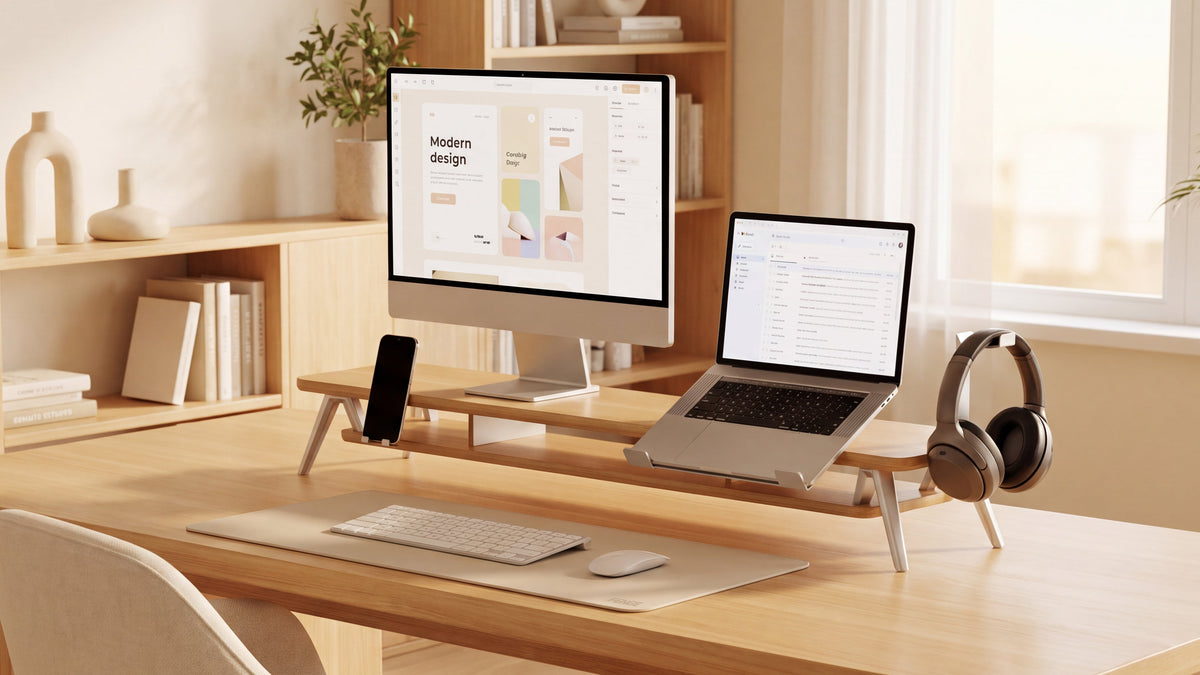
If you work primarily from a laptop and only need a larger display occasionally, one external monitor can provide a comfortable main view without creating a permanent multi-screen setup. A stand with open space underneath can also give the laptop a defined place when it is not in use.
When a dual monitor setup pays off
Reference material and main work
Two screens are useful when you regularly read one source while working in another window. You might keep a brief, spreadsheet, code editor, or product catalog on one display and the main document on the other. This can reduce repeated tab switching, provided both screens fit your viewing area comfortably.
Communication and production at the same time
A second screen can hold email, a chat window, a meeting panel, or a task queue while the primary screen remains dedicated to the work in progress. This arrangement is most helpful when checking communication is part of the workflow rather than a source of constant interruption.
Creative work, coding, and monitoring
Editors, developers, analysts, and streamers often benefit from assigning a clear role to each screen. The exact advantage depends on the software and the tasks. Two screens do not automatically make a workflow faster; they help when both displays have a job.
Choose by workflow, not screen count
Ask yourself these questions before you buy:
- Which two windows do I need visible together most often?
- Do I need both screens every day, or only during occasional projects?
- Can my desk hold both monitor bases while leaving comfortable keyboard and mouse space?
- Will I look mostly at the center of one screen, or move between both screens equally?
- Do my computer and cables support the number of displays and the resolution I want?
If the answers point to one main task and occasional reference material, start with one monitor and keep the setup flexible. If the answers point to two continuous tasks, a dual monitor setup is more likely to justify the added footprint.
How to choose monitor size and specifications
Size and resolution
Choose a size that fits your desk and viewing distance, then choose a resolution that keeps text and interface elements comfortable at that size. Two matching monitors simplify alignment and color consistency. Two different monitors can work when you give each one a clear role, such as a larger primary display and a smaller reference screen.
Refresh rate and response
Office work, documents, and web research do not require the same display characteristics as fast games or high-frame-rate video. If gaming is part of your routine, prioritize the refresh rate and response characteristics that your computer can actually use. Avoid paying for specifications that do not improve your normal tasks.
Ports and computer support
Check the ports on your computer, dock, and monitors before ordering. Confirm whether you need HDMI, DisplayPort, USB-C, a dock, or an adapter, and check that the computer can drive both screens at your intended resolution. A good physical layout cannot compensate for a connection that does not support the display.
Make either setup more comfortable
Set the primary screen first
Place the screen you use most directly in front of you. In a dual monitor setup, angle the second screen toward your seating position rather than leaving it far off to the side. Keep the top of each screen around eye level or slightly below as a starting point, then adjust for your chair, screen size, eyewear, and comfort.
Use a monitor stand or riser
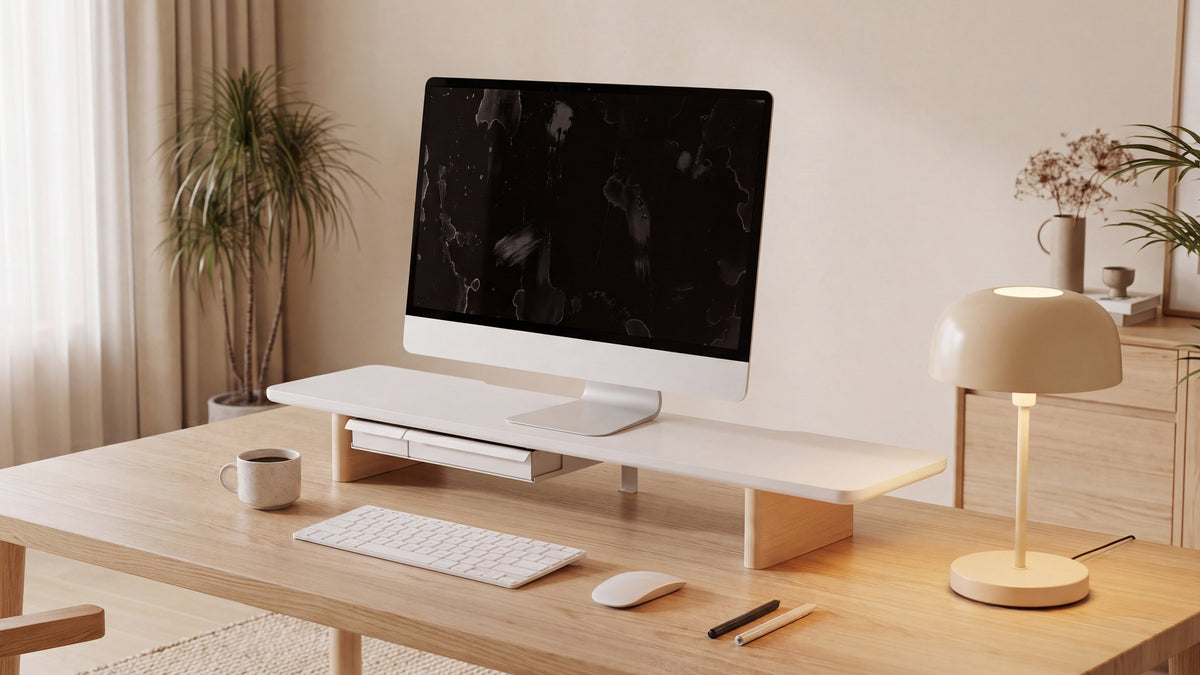
A monitor stand can raise a screen without using a wall mount, while a monitor riser can create storage space below it. For two screens, look for a top surface wide enough for both bases and a structure that supports the load where each base sits. A dual monitor stand with storage can also hold a keyboard, notebook, or accessories beneath the screens when the measurements allow it.
Compare the FENGE desk shelf collection if you want to reclaim surface area without moving to a monitor arm. Measure each monitor base, the usable shelf width and depth, and the clearance needed for your keyboard before choosing a model.
Manage cables and daily accessories
Route display and power cables before finalizing the screen position. In a two-screen setup, keep enough slack for small adjustments, but avoid loops that occupy the space where you need your hands. Use the space under a riser for items you reach for often, and move infrequently used adapters or spare cables into a drawer or nearby organizer.
Single vs. dual monitor setup for common scenarios
Home office
Choose one monitor when your priority is a calm, compact desk. Choose two when your work involves a main document plus continuous research, communication, or data. If the second screen is only occasional, a laptop or tablet can provide that extra view without taking permanent space.
Gaming and entertainment
A single larger or faster monitor may provide a cleaner gaming experience and simpler cable management. Two screens can be useful for chat, a stream dashboard, or guides, but check that the extra display does not force your main screen too far from the center of your view.
Creative and technical work
Two screens are helpful when a tool panel, timeline, reference image, terminal, or preview needs to remain visible. A single high-resolution display may be the better fit when color consistency, a clean canvas, or limited desk depth matters more than simultaneous windows.
Final buying checklist
- Write down the windows you need visible at the same time.
- Measure desk width and depth after allowing space for your keyboard and mouse.
- Measure each monitor base, not only the screen diagonal.
- Confirm computer ports, dock support, resolution, and refresh-rate requirements.
- Plan the primary screen position and the height of any stand or riser.
- Leave cable slack for adjustments and keep vents and ports accessible.
- Choose storage or accessories that solve a specific problem on your desk.
Frequently Asked Questions
Is a dual monitor setup better than one monitor?
It is better when you regularly need two related views at once. A single monitor is better when desk space, focus, simplicity, or a clean visual field matters more. The right choice depends on your workflow.
Should two monitors be the same size?
Matching monitors make alignment and color consistency easier. Different sizes can work when the larger screen is the primary display and the smaller screen has a supporting role. Measure the bases and final screen heights before deciding.
Is a monitor stand worth it for one screen?
It can be. A stand can help set screen height and create usable space below the display for a keyboard, notebook, or small accessories. Choose one that supports the monitor base and fits your desk depth.
Can a riser support two monitors?
Some risers are designed for two screens, but compatibility depends on the usable top surface, base footprints, total weight, and any section-specific load limits. Check those measurements rather than relying on screen size alone.
Find your best monitor setup with FENGE
Whether you choose one screen or two, begin with the work you want the desk to support. Measure the equipment, set the primary screen at a comfortable height, and use the available surface for the tools you reach for every day.
Explore the FENGE monitor stand collection for ways to raise a screen and organize the area beneath it. If you are building a more complete workspace, browse FENGE workspace essentials for complementary desk accessories.
The best setup is the one that keeps your most important work in view while leaving enough room to work comfortably.
Share:
How to Clean a Monitor Without Leaving Water Marks