

Best Multi-Monitor Setup Combinations: What Sizes and Specs Should You Choose?
The best multi-monitor setup depends on the work you keep open, the depth of your desk, and the distance between your eyes and the screens. For many people, two matching 27-inch monitors at 1440p are the most flexible starting point. A pair of 24-inch 1080p displays suits a smaller budget and desk, while a 32-inch main screen with a vertical secondary monitor gives more room for documents and long pages. An ultrawide can simplify the layout when you prefer one continuous canvas.
There is no universal winner between two screens and an ultrawide. The right combination makes your primary content easy to see, keeps secondary information available without constant window switching, and leaves enough space for the keyboard, chair, cables, and other devices.
The Reddit discussion about dual-monitor configurations with or without an ultrawide reflects the same tension. Users compare matching pairs, mixed sizes, vertical side monitors, ultrawides, desk depth, GPU outputs, and the visual gap between bezels. Treat those comments as practical experiences, then test the recommendation against your own workflow.
What Should You Decide Before Buying Two Monitors?
Start with the tasks you keep open
List the windows you use at the same time. A writer may keep a document on one screen and research on the other. A developer may use code, logs, and a browser. A trader, editor, or support agent may need several persistent panels. The second display is useful when it removes repeated switching, not when it simply adds another desktop.
Measure the desk and chair position
Measure usable width from the desk edge to the wall, then account for the monitor stands, keyboard, speakers, and a clear mouse area. Depth matters as much as width. A larger screen can feel too close when the chair cannot move back. Treat the measurements as starting points and adjust the screens after you sit in the position you use every day.
Check the computer and its ports
Confirm that the GPU, laptop dock, or motherboard can drive the chosen resolution and refresh rate on every output. Check DisplayPort, HDMI, USB-C, adapters, dock bandwidth, and whether the computer can wake both displays reliably. A configuration that looks ideal on paper can become frustrating when one screen is limited to a lower refresh rate or requires a fragile adapter.
Dual Monitor Setup Options Compared
| Configuration | Recommended baseline | Best for | Main tradeoff |
|---|---|---|---|
| 2 × 24-inch | 1080p, 60-100 Hz, matching aspect ratio | Compact offices, schoolwork, entry-level productivity | Less workspace and lower text density than larger high-resolution screens |
| 2 × 27-inch | 1440p, 60-165 Hz depending on work or gaming | General productivity, coding, research, mixed work and play | Needs more desk width and careful alignment |
| 32-inch + vertical 24/27-inch | 4K main screen plus 1080p or 1440p secondary | Spreadsheets, documents, timelines, chat, and reference material | Mixed scaling and a less symmetrical appearance |
| 2 × 27-inch 4K | 4K, 60-144 Hz based on the GPU and panel | Photo, video, design, detailed documents, high-resolution workflows | Higher cost, GPU demand, and scaling decisions |
| Ultrawide + vertical side monitor | 34-inch or larger ultrawide plus 24/27-inch vertical screen | Timeline work, immersive games, wide spreadsheets, reference reading | More width, mixed aspect ratios, and a larger footprint |
Configuration 1: Two 24-Inch Monitors for a Compact Desk
Two 24-inch 1080p monitors remain useful when the desk is narrow or the computer is modest. Matching screens make window placement predictable and reduce the visual distraction caused by different bezels or color profiles. This combination works for email, documents, browser research, schoolwork, and basic development.
Choose adjustable stands or a compact dual monitor stand so the screens can sit at similar heights. If the monitors have thick bases, the stand or riser can return valuable space to the keyboard and notebook. Check each display's VESA pattern and weight before selecting the support.
For gaming, confirm the refresh rate and response behavior of both displays. The secondary monitor does not need the same refresh rate when it is used for chat, a browser, or monitoring tools, but matching models keep the setup easier to tune.
Configuration 2: Two 27-Inch 1440p Monitors for an All-Purpose Setup
Two 27-inch 1440p monitors are the most balanced recommendation for many users. The size offers useful workspace without the physical scale of two 32-inch panels, and 1440p gives more room for text and windows than 1080p.
Use one screen as the primary display and angle the second slightly toward your chair. Keep the main screen centered with your keyboard and mouse. If both screens are equally important, place the seam close to the center of your natural view and avoid turning your head repeatedly for small tasks.
This setup suits a developer with code and documentation, a marketer with analytics and content, or a gamer who wants a high-refresh primary screen and a second display for chat or guides. Match refresh rates when motion needs to look consistent. Mixing a 165 Hz gaming display with a 60 Hz secondary is reasonable when the jobs are different.

Configuration 3: A 32-Inch 4K Main Monitor Plus a Vertical Screen
A 32-inch 4K main monitor gives spreadsheets, design files, and timelines more physical space. Add a 24-inch or 27-inch screen in portrait orientation for chat, documents, coding, dashboards, or long web pages. The vertical display is most useful when the content is tall rather than wide.
This combination is less symmetrical, but it can be more efficient than two identical screens because each panel has a clear role. Set the main screen in front of you and place the vertical display on the side you naturally look toward. Use the operating system's scaling controls so text looks readable across both resolutions.
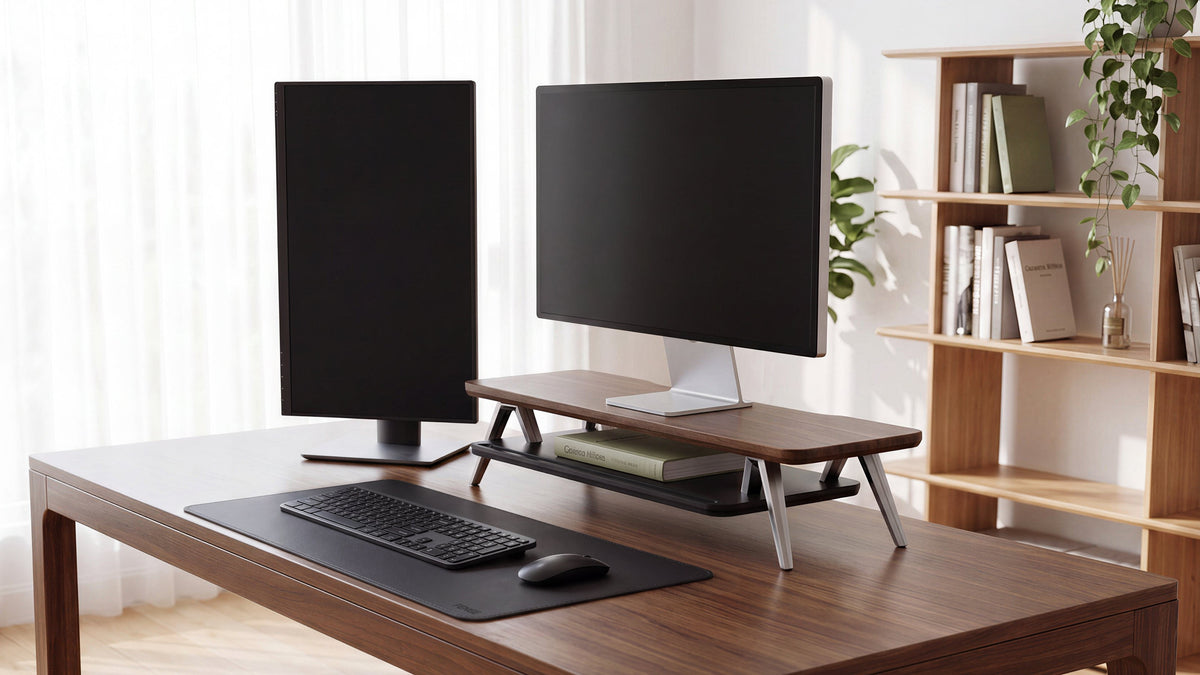
Measure the height of the vertical display carefully. A 27-inch monitor rotated into portrait orientation can be taller than expected and may need a high stand or a wider platform. Confirm that the support is designed for the rotated position and that the cables can turn without tension.
Configuration 4: Two 27-Inch 4K Monitors for Creative and Detailed Work
Two 27-inch 4K monitors suit photo editing, video work, design, CAD, and detailed document workflows when the computer and budget can support them. Matching resolution makes windows and text more consistent, while two panels give you room for a canvas, tools, references, or a timeline.
Check color coverage, calibration options, connection bandwidth, and the GPU before buying. A pair of high-resolution monitors can require more adapters or dock bandwidth than a single display. If color accuracy matters, prioritize the exact panel and calibration workflow over a decorative specification list.
For gaming, 4K at a high refresh rate can increase GPU demand. Many users choose a fast primary monitor and a lower-refresh secondary screen instead. That tradeoff often makes more sense than paying for two identical gaming panels when the second display is used for static information.
Configuration 5: Ultrawide Plus a Vertical Secondary Monitor
An ultrawide creates one continuous horizontal canvas, which appeals to users who dislike the bezel gap between two screens. It works well for video timelines, wide spreadsheets, simulation interfaces, and games that support the aspect ratio. Add a vertical side monitor when you need a dedicated place for chat, documentation, or monitoring.
The Reddit debate around ultrawide versus dual monitors often comes down to window management and failure tolerance. Two screens make it easy to keep separate full-screen applications visible. An ultrawide gives a cleaner visual field but can require window tiling or zones to keep it organized.
Check the ultrawide's curve, width, stand depth, and input support. Leave space for the vertical display and ensure the chair is centered on the content you use most. A wide setup that pushes the main screen too far to one side can feel less comfortable than a narrower pair.
How Reddit Users Think About Mixed Monitor Sizes
Community discussions rarely agree that every monitor must match. Several recurring viewpoints are more useful than a single “best” configuration:
- Matching screens are easier to align. Similar size, resolution, bezel width, and color reduce setup friction.
- Mixed sizes can give each screen a job. A large main monitor and a vertical secondary display may use desk space better than two identical panels.
- Ultrawides reduce the seam. They suit users who want one continuous canvas and enjoy window tiling.
- Two screens improve separation. A dedicated reference or communication screen can stay visible while the main screen holds the task.
- Desk depth decides more than people expect. A large display or a deep stand can push the keyboard too close to the edge.
- The main screen should be centered. Users often prefer the primary panel aligned with their chair and keyboard, with secondary content angled outward.
These are anecdotal preferences from a public discussion, not a product test. They are useful because they show how the same combination can feel efficient to one user and excessive to another.
What Specs Should You Match?
Size and resolution
Matching size and resolution makes scaling and window movement simpler. Mixed resolutions can work when the main and secondary displays have different roles, but check text size and cursor movement before committing.
Refresh rate
Gaming benefits from a high-refresh primary display. Office work, chat, and documents can often run comfortably at a lower rate. Match refresh rates when synchronized motion matters; mix them when the screens have separate jobs.
Aspect ratio and orientation
Two 16:9 monitors are easy to arrange. A vertical screen helps with long content. An ultrawide offers a broad canvas. Choose the ratio that fits the work instead of adding width that you will not use.
Ports and signal path
Count the outputs on the computer, dock, and monitor. Confirm the cable type, resolution, refresh rate, HDR behavior, and wake-from-sleep performance. Keep adapters and power supplies accessible for troubleshooting.
Why Use a Monitor Stand or Riser With Multiple Screens?
A multi-monitor setup can consume the entire desk when every display uses its own base. A stable monitor riser for dual monitors raises the screens onto one platform and leaves the lower level open for a keyboard, notebook, controller, or small accessories.
The main benefits are alignment, space, and repeatability. A shared support can make the top edges and viewing heights easier to match. It also gives you a defined route for signal and power cables instead of leaving them spread around separate bases.
FENGE monitor risers are designed for desk setups where screen elevation and organization need to work together. The FENGE monitor stand collection can be reviewed alongside your screen dimensions, base depth, and intended configuration. For a standard dual 27-inch arrangement, verify the current model's platform size, load limit, and supported setup before ordering.
If you use one laptop and one external monitor, the FENGE Rodin A311 combines a laptop stand, external-monitor platform, headphone stand, and phone stand. It is a useful direction for a mixed-device desk where the laptop is part of the workflow. Confirm current specifications and configuration options on the product page.

Before combining a riser with two displays, measure the total monitor width, platform depth, center of gravity, keyboard clearance, and cable bend. The support must remain stable when both screens are adjusted or when one display is rotated vertically.
A Simple Selection Process
- Choose the work pattern. Decide which windows must stay visible at the same time.
- Measure the desk. Record usable width, depth, wall clearance, and chair position.
- Pick the primary screen. Set its size, resolution, refresh rate, and panel type first.
- Assign a role to the secondary screen. Use it for reference, communication, monitoring, or a vertical document flow.
- Check the signal path. Confirm ports, cables, dock bandwidth, and GPU capacity.
- Plan the support. Choose a stand, arm, or riser that matches the total load and gives the screens a stable position.
- Test the layout. Use cardboard or temporary stands to check viewing angles before buying the final setup.
Build the Multi-Monitor Setup Around Your Work
Choose matching screens for simplicity or mix sizes when each display has a clear role. Then use a stable monitor stand or riser to align the screens, free desktop space, and route the cables cleanly.
Explore FENGE monitor standsFrequently Asked Questions
What is the best dual monitor setup?
For many users, two matching 27-inch 1440p monitors offer a useful balance of workspace, sharpness, and desk size. A 32-inch main screen with a vertical secondary display can be better for documents and timelines.
Should dual monitors be the same size?
They do not have to match. Matching screens make alignment, scaling, and color consistency easier. Mixed sizes are useful when the primary and secondary displays have different roles.
Is an ultrawide better than two monitors?
An ultrawide provides one continuous canvas and avoids a bezel gap. Two monitors provide clearer separation between applications and can be easier to replace or rearrange. Your window habits and desk width should decide.
What is the best resolution for a dual monitor setup?
1440p is a strong middle ground for two 27-inch monitors. 1080p suits two 24-inch monitors and lower-power systems. 4K is useful for detailed work but requires more GPU and scaling planning.
Can a monitor riser hold two monitors?
Only when its platform and load specifications support the combined monitors and bases. Check the current product details, total weight, platform depth, and stability before using a dual-monitor configuration.
Related Articles
How to Choose a Monitor Riser for 27-Inch Monitor
Is the Best Computer Monitor Actually a TV? What Most Buyers Get Wrong
Share:
8 Home Office Desk Setup Tips You Should Know